
What it does
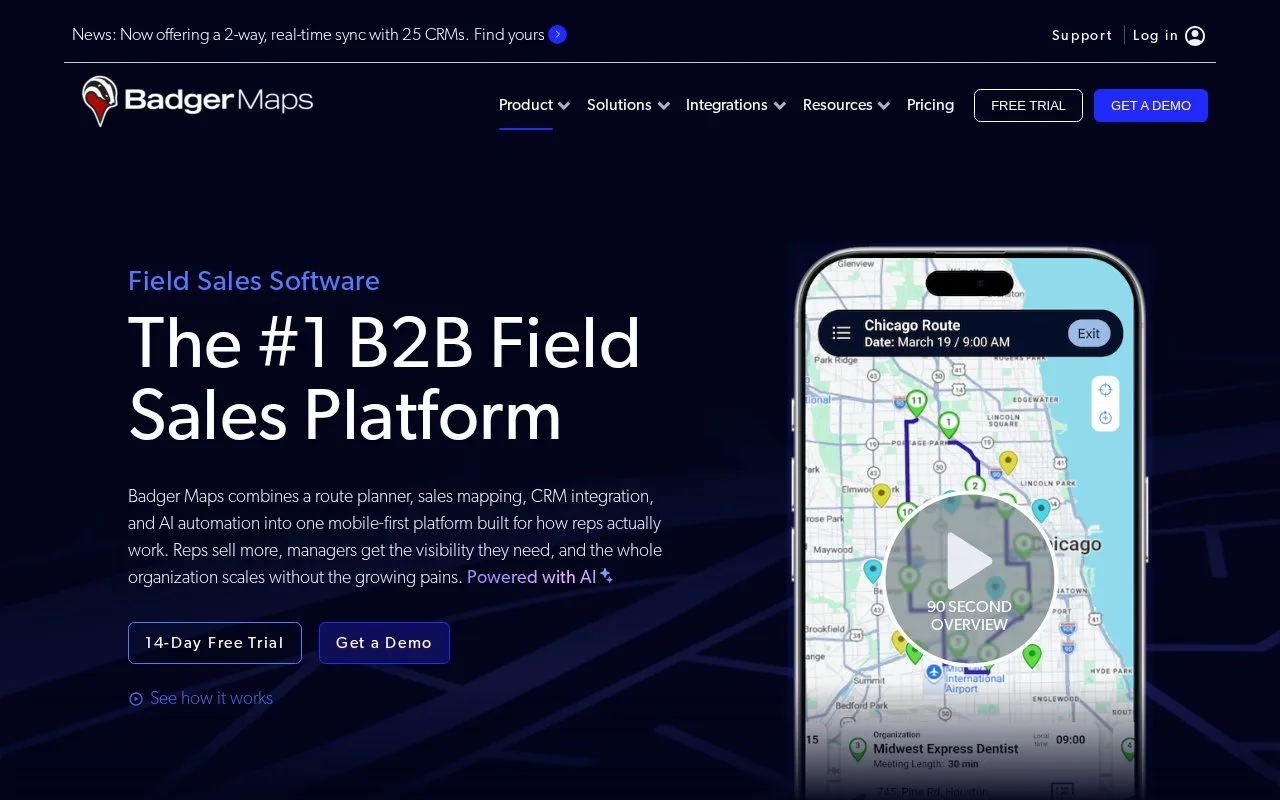
Badger Maps helps field sellers organize accounts, plan visits and record activity. Standard uses red menus and Advanced uses blue menus, with different route instructions for each. Paid per-user plans offer monthly or annual billing; Personal provides a 14-day evaluation of Business features.
Check the menu color before following a route guide: Standard is red; Advanced is blue and supports multiple CRM objects. These controls describe Standard.
In Routes, add an account or enter a Quick Stop, set the start and end locations, then optimize and save with a name and date. A Quick Stop is an address; check-in becomes available only after it is saved as an account.
To keep a manually chosen order, open the saved route, drag the stop handle and save. Pressing Optimize afterward rearranges that order, which can undo a sequence planned around appointments.
Access and CRM connections
Personal starts a fourteen-day Business evaluation through an account.
| Paid plan | Selected scope |
|---|---|
| Business | A single-object CRM connection and team management |
| Enterprise | Multiple CRM objects and further administration |
| Enterprise Plus | Quoted territory and customization work |
Business and Enterprise subscriptions are per user with monthly or annual payment. The team pilot is a separate evaluation route.
Strengths
- Routes can include saved accounts and ad hoc address stops
- Standard allows manual stop reordering when appointment order matters
Watch out for
- Quick Stops cannot use check-in until saved as accounts
Best for
- Field salespeople combining account visits with a planned daily itinerary
Sources
- Badger Maps pricing and access (Oct 27, 2026)
- Badger Maps - The #1 B2B Field Sales Platform (Oct 25, 2026)
- How do I know if I have Badger Maps Standard or Advanced version? – Badger Maps Knowledgebase (Oct 26, 2026)
- How to Create a Route / Add an Account to Your Route (Web App) - Badger Maps (Oct 26, 2026)
- How to Move Accounts/Stops on a Route (Web App) - Badger Maps (Oct 26, 2026)