
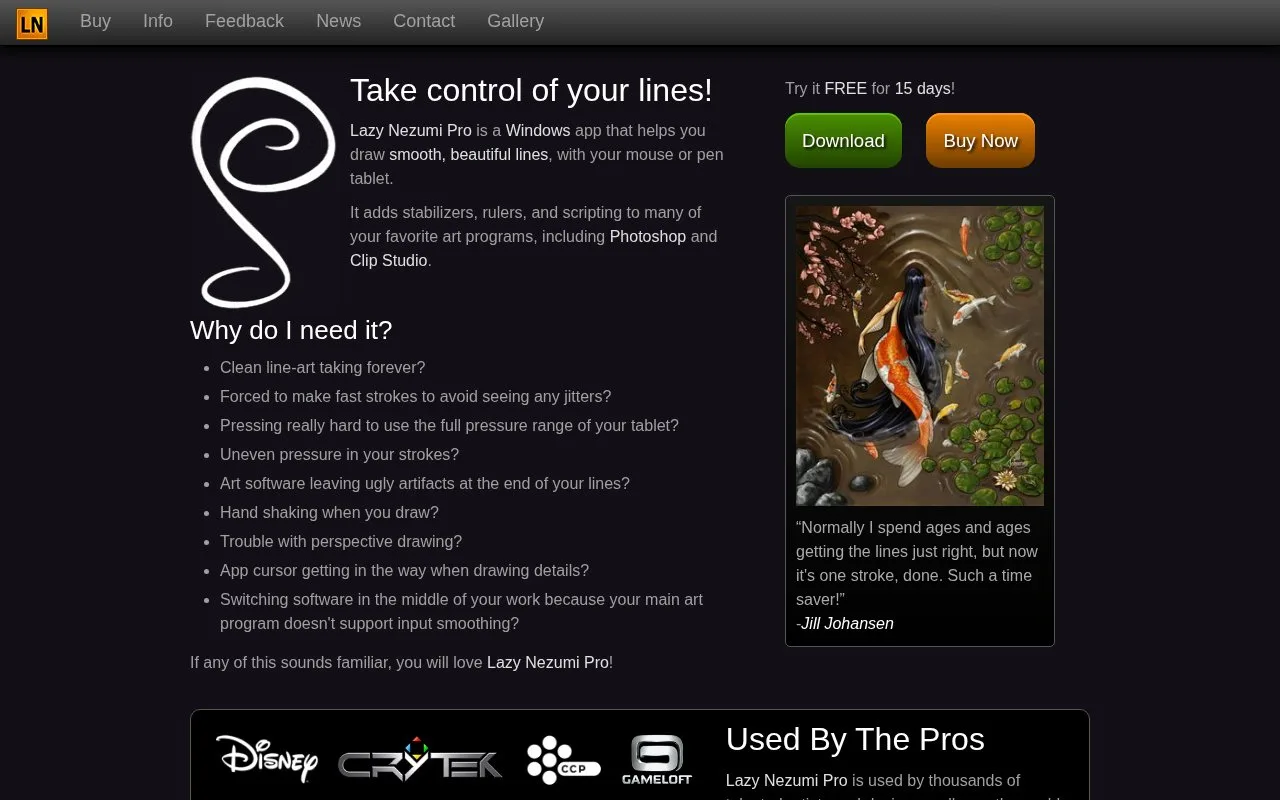
What it does
Lazy Nezumi Pro adds input smoothing, rulers and scripting to supported Windows drawing applications. It works with pen tablets or a mouse and provides configurable smoothing modes.
To connect an ordinary drawing application, choose File > Attach to Window and drag the LN icon onto its canvas. A flashing rectangle confirms the attachment. Photoshop’s installed plugin attaches canvas windows automatically; other applications may need each new window attached.
Create a preset through Presets > New, then expand its settings with the arrow beside the preset list. Pulled String helps with slow lines and sharp corners. Moving Average rounds curves; raising its Amount also increases brush lag. Catch Up lets a line reach the pen position after you stop moving. Map pen pressure to size or opacity in the drawing application before adjusting pressure smoothing.
The 15-day trial is followed by a one-time licence purchase. That includes one year of updates and continued use of the last eligible version afterward. A single-user licence can activate up to three personal machines. Lazy Nezumi Pro needs an x86 or x64 Windows computer; ARM processors are not supported.
Strengths
- Different smoothing modes suit corners or flowing curves.
- Presets preserve a chosen input setup.
Watch out for
- Increasing smoothing can introduce brush lag.
- Windows ARM computers are not supported.
- Some smoothing and pressure features depend on how the drawing application handles input.
Best for
- Careful line art
- Artists tuning pen input
Sources
- Lazy Nezumi Pro: Mouse and Pen Smoothing for Photoshop and other Apps (Oct 27, 2026)
- Lazy Nezumi Pro: Frequently Asked Questions (Oct 27, 2026)
- Lazy Nezumi Pro: Line Smoothing Tutorial (Oct 27, 2026)
- Lazy Nezumi Pro: Purchase a License (Oct 27, 2026)