What it does
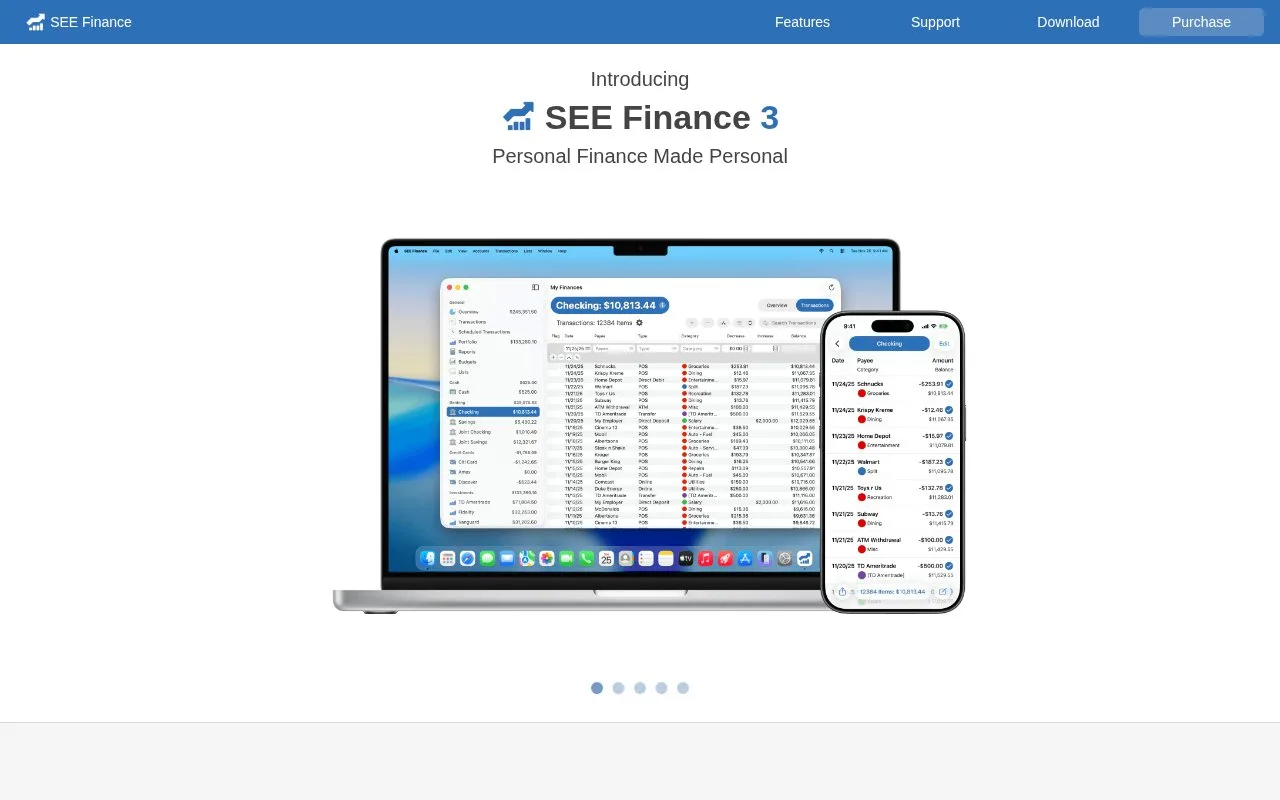
SEE Finance manages personal accounts, budgets and custom reports on Mac, iPhone and iPad. You choose where to store the financial file, including iCloud Drive, and can work with manual entries or imported statements. The Mac and iOS apps are separate purchases; a 30-day trial is available for Mac.
SEE Finance gives attention to the details of a financial register. Change which transaction information appears, enlarge fonts or color-code records to suit the way you review them. Custom reports and budgets then use that account history. Files can stay in a chosen local folder or use iCloud Drive for access across Apple devices.
Starting a file
Choose File, New File and Get Started. For a manual account, enter its name, type, currency and opening balance with the date that balance applies to. The initial setup also offers account downloads or imports from another finance application. Before importing, select the program that created the file when it appears in the list, and check which accounts, transactions and date format to use.
Automatic downloads depend on a financial institution supporting OFX Direct Connect, a specific bank data service. A bank may charge for that connection. File imports remain an alternative, including QFX, OFX and QIF account data and CSV transactions.
For a portable copy of your history, use File, Export and choose QIF or CSV, then select accounts and dates. Exporting all accounts as CSV creates a folder containing a separate file for each account.
Purchase and device requirements
SEE Finance 3 is sold without a subscription. The site lists the Mac edition at US$59.99, alongside a limited Mac App Store offer of US$49.99, and the separate iOS edition at US$9.99. Version 3 requires macOS 15 or later, or iOS 18 or later. The direct Mac download has a 30-day trial. Direct purchases use the purchaser’s name and email for licence registration; App Store purchases register automatically. PayPal purchases are nonrefundable under the publisher’s policy.
Strengths
- Transaction display, import settings and reports are configurable.
- Financial files can be stored locally or in iCloud Drive.
- QIF and CSV exports allow selected accounts and date ranges.
Watch out for
- Mac and iOS require separate purchases.
- Automatic downloads require OFX Direct Connect support, and the bank may charge for it.
- The publisher does not refund direct PayPal purchases.
Best for
- Apple users who want configurable financial registers and chosen file storage
- People importing a finance history from an older desktop application
Sources
- SEE Finance 3 product and purchases (Oct 27, 2026)
- SEE Finance frequently asked questions (Oct 27, 2026)
- SEE Finance: create a file (Oct 27, 2026)
- SEE Finance: export transactions (Oct 27, 2026)