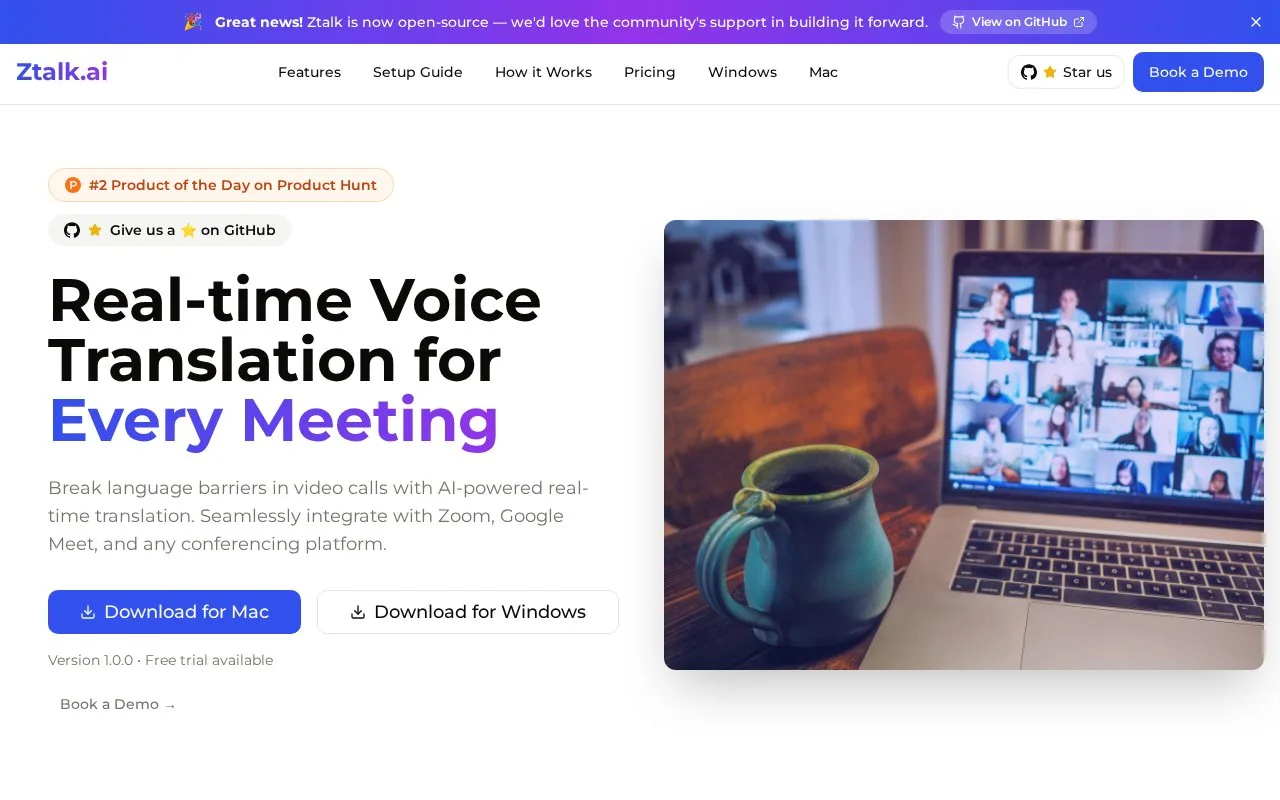
Ztalk.ai translates speech during video calls, so a multilingual meeting can run without a separate interpreter. You install the desktop app, choose input and output languages, then set Ztalk as the audio device in your conferencing tool. The catalogue record also names native language captions, noise cancellation, voice isolation and audio mixing controls.
Written from our directory record because the site could not be read automatically, and checked against that record on .
Our take
Worth a look if your calls regularly mix languages and you'd rather not relay everything through a third person. The setup is the part to plan for: it works through a virtual audio driver, so expect a few minutes of device configuration before your first call. The record also names enterprise admin controls, without saying what they cover.
Features
-
Voice-to-voice translation
Speech is translated between languages during a live video call rather than after the fact.
-
Virtual audio driver
The app installs a virtual audio driver, and you select Ztalk as the audio device inside your conferencing app.
-
Native language captions
Captions appear in your own language while the call runs.
-
Noise cancellation
The record lists noise cancellation and voice isolation alongside the translation features.
Best for
- Multilingual team calls
- Cross-language client conversations
- People who meet regularly in a second language
FAQ
- How does Ztalk.ai translate a video call?
- It runs as a desktop app, installs a virtual audio driver, and you pick Ztalk as the audio device in your conferencing app after choosing input and output languages.
- Which platforms does Ztalk.ai run on?
- The catalogue record describes it as a desktop app for Windows and Mac.
Sources
- ztalk.ai/ (opens in a new tab) Catalogue record describing the app, its call workflow and listed features